플레이어들에게 아이템 거래를 요청하지 않고 스팀 플레이 테스트를 간단하게 진행합니다.
참가자들에게 보고서를 세션과 연결하는 데 필요한 게임 빌드, 운영 체제 및 공개 식별자를 요청하세요.
참가자들에게 보고서를 세션과 연결하는 데 필요한 게임 빌드, 운영 체제 및 공개 식별자를 요청하세요. 표시되는 프로필 이름은 변경될 수 있으므로 각 참가자가 자신의 클라이언트에서 식별자를 확인하도록 하세요. 유용한 관찰 내용을 제출하기 위해 인벤토리 이전, 계정 레벨 또는 특정 배지를 요구하지 마세요.
참가자가 거래 제한에 직면하는 경우, 해당 문제는 플레이 테스트와 분리하여 처리하십시오. 화면에 표시되는 정확한 문구를 기록하고 참가자 본인의 계정을 사용하여 Steam 지원 채널에 문의하도록 안내하십시오. 연구 보상은 합의된 테스트 내용과 증거에 따라 결정됩니다.
If you want to learn how to remove a Steam Trade ban, examine and apply all the detailed steps explained below!
Steam is a vast pool used by gamers worldwide to purchase games. Through the Community Market, it has also become a space where members can sell items, cases, and other packages as they wish. In certain cases, when attempting to make purchases on the Steam Community Market, you may receive a 15-day or 7-day Steam Trade ban warning.
There are several methods to remove a Steam Trade ban. However, it is necessary to first identify the source of the error and then proceed with the necessary steps. According to various sources shared on the website and discussed in different forums, the Steam Trade ban was a result of pressure from the Valve company to keep underage users away from gambling activities.
Even if you are underage, you may still be subject to a trading or Community Market (Steam Trade) ban. Here, we provide you with all the details on how to remove a Steam Trade ban so that you can quickly learn the steps involved.
The Process of Removing Steam Trade Ban
In order to engage in any item trading on the Steam Community Market, you need to remove the trade ban associated with your account. Without lifting the ban, you won't be able to participate in trading. However, there are ways to remove a Steam trade ban.
Follow these steps to remove the trade ban from your desktop (PC) device:
- First, you need to access the Steam Community or Steampowered website. Click on the 'Login' text located at the top left corner of the page.
- Enter your username in the 'Username' field and your password in the 'Password' field. Then click on the 'Sign In' button below.
- If you are using Google Chrome and have your password saved, you can automatically log in to your account.
- After logging into your account, click on your 'Profile' picture at the top.
- Hover your mouse over the 'COMMUNITY' tab at the top of your profile page.
- In the submenu that appears, click on 'Marketplace'.
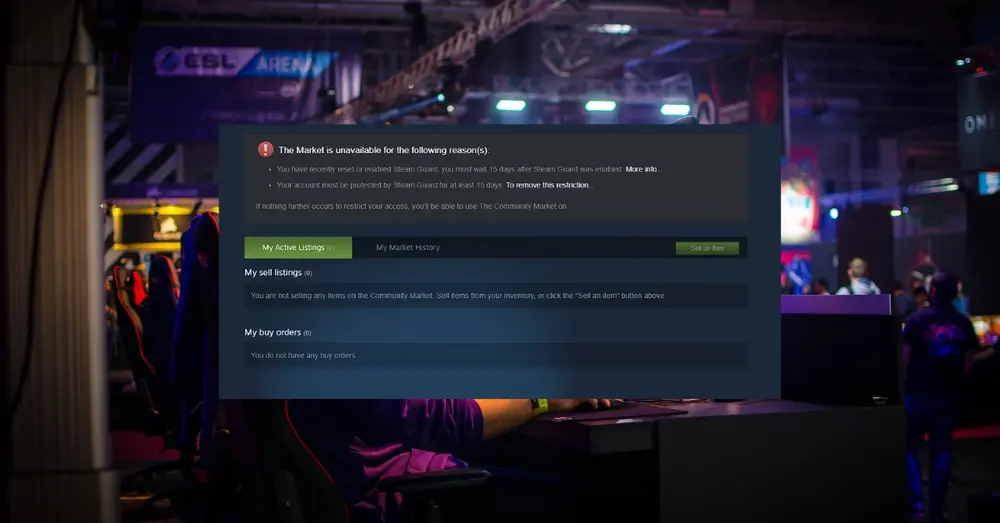
- Once you access the Community Market, you will see a warning message stating, "Your account is unable to use the Marketplace for the following reasons: Your account must be protected by Steam Guard for at least 15 days."
- In other words, the Steam trade ban cannot be removed for 15 days, and you won't be able to make purchases on the market during this time.
- To prevent this, click once on the section that says "To remove this restriction, click here..." in the warning message.
- You will be redirected to the 'Steam Guard' account setup. Then, click on the 'Profile name' at the top and navigate to the 'Account details' section.
- Scroll down to the bottom of the 'Account details' page and find the 'Account Security' section.
- Typically, you will see a warning message that says "Status: Your Steam Guard is not protecting your account".
- Just below that, click once on the "Manage Steam Guard" section.
- The "Disable Steam Guard" option will be automatically selected.
- Choose one of the two options above it: 'Get Steam Guard codes from the Steam app on my phone' or 'Get Steam Guard codes by email' to complete your process.
- If you choose the second option as an example, you will receive a notification stating that your account is "Protected by Steam Guard email".
Controlling Community Market for Removing Steam Trade Ban
Once you have completed the steps mentioned above, the final step is to check your status on the market. You can easily do this on your computer by following the steps below:
- Click once on the 'COMMUNITY' section at the top of your account page.
- Then click on the 'Market' section, which is also located in the same area.
- If you have recently completed the verification process, a new restriction will be visible. If you haven't reached this stage yet, don't worry, as Steam Guard settings automatically protect an account for 15 days after they have been configured.
- At the bottom, you can see the 'Community Market will be available on 27.06.2024...' message, which indicates when the Steam Trade ban will be lifted.
This article was last updated on 28 November 2026 saturday. Today, 17 visitors read this article.